How to Test an AI-Suggested Spreadsheet Formula
Use fictional rows and known answers to check references, blanks and edge cases before copying a formula.
In this guide
A spreadsheet formula can be valid and still calculate the wrong thing. AI needs a clear column layout and a definition of the desired result. Before using a suggested formula in an important workbook, test it with a few fictional rows whose answers you already know.
Describe the sheet precisely
Name the application and relevant version. State the columns, the first data row and the expected output. Explain whether the cells contain numbers, dates or text. Do not paste private customer records or an entire confidential workbook.
For example, column A might contain item names, B quantities and C unit prices. If row 2 contains quantity 3 and unit price 50, the expected line value is 150. That small check makes the request concrete.
Ask for an explanation with the formula
In a sample sheet, B2 contains quantity and C2 contains unit price. Suggest a formula in D2 for line value. Explain the references and what changes when I copy the formula to D3. Use fictional data and include a test with quantity zero.
For this layout, =B2*C2 multiplies the two cells. Copying the formula down normally changes the relative references to B3 and C3. If a fixed rate is stored in another cell, ask how an absolute reference differs rather than assuming every reference should move.
Create normal and boundary rows
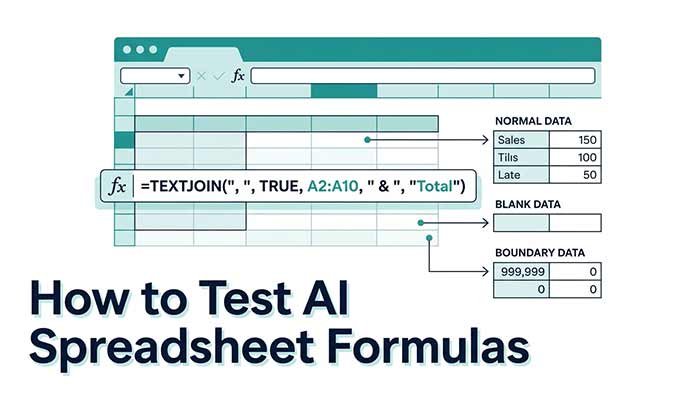
- A normal row: quantity 3 and price 50 should give 150.
- A zero row: quantity 0 and price 50 should give 0.
- A decimal row: quantity 2 and price 12.5 should give 25.
- A deliberately problematic row: text in a numeric field should be investigated rather than silently accepted.
Test how your application handles a blank cell, a text number and an error value. Decide whether blanks should produce zero, an empty display or a warning. The right behaviour depends on your workflow, so tell the assistant explicitly.
Check range boundaries
For totals and conditions, inspect the first and last included rows. A formula using B2:B10 will omit row 11 even if it contains data. A copied condition may shift a range that should remain fixed. Use a tiny sample to make these mistakes visible.
Function names, separators and availability can depend on application, locale and version. If a formula is rejected, compare the syntax with the current official help for your software. Do not add random punctuation until the error disappears.
Apply cautiously and compare totals
Work in a copied sheet first. Once the sample behaves correctly, apply the formula to a wider range and compare a few manually calculated rows. Keep the original data and review any unexpected total. The assistant does not open or execute your workbook, so its explanation is not proof that the formula ran correctly.
Questions that often come up
Can I paste a screenshot instead of a layout?
This chat accepts text, not workbook or image analysis. Describe the relevant cells and use fictional rows.
Why does the formula work in one app but fail in another?
Check function support, locale separators and data types in the intended application. Ask for a version-specific explanation and verify it with official help.
Try the related pages
This guide was prepared with AI assistance and checked against the behaviour of the ReDeepSeek tools. Review AI answers before using them and report unclear examples through our Contact page.